
Get Started
This walkthrough takes you from nothing to a running extension with hot reload, then to a zip you could upload to the Chrome Web Store. It assumes you write JavaScript or TypeScript and have Chrome installed. It does not assume you have built an extension before — but it teaches by doing rather than by explaining MV3. Once you have something running, How Amber Maps to MV3 explains what the toolchain actually did.
You need Node.js 20+ (or Bun) and a Chromium-based browser.
1. Scaffold a project
npm create amber@latest my-extensionyarn create amber my-extensionpnpm create amber my-extensionbun create amber my-extensionThe scaffolder delegates to create-vite for the framework skeleton, then overlays the Amber pieces. It asks four questions:
| Prompt | What it decides |
|---|---|
| Project name | The folder to create. |
| Use isolated chromium browser for development? | Adds Playwright and a dev:browser script that launches a throwaway Chromium with your extension preloaded. Answer yes if you don't want to keep clicking Load unpacked. |
| Framework | Vue, React, Svelte, vanilla, and so on — this is create-vite's list, used for your extension's pages. |
| Variant | The TypeScript or JavaScript flavour of that framework. |
You end up with a normal Vite project plus three additions: amber.config.ts, src/background.ts, and src/content-script.ts. Any vite.config.ts that create-vite produced is folded into amber.config.ts and deleted — see amber.config.ts for why a standalone Vite config will not be read.
2. Install dependencies
The scaffolder writes package.json but does not install anything. Do it yourself:
cd my-extension
npm install
3. Start the dev server
npm run devyarn devpnpm devbun devAmber starts a Vite dev server, builds your background worker in watch mode, and writes an unpacked extension into dist/. Leave this running — in development the extension loads its code from the dev server, so it stops working when the server stops.
If you answered yes to the isolated browser prompt, npm run dev:browser launches Chromium with the extension already installed, and you can skip the next step entirely.
4. Load it into Chrome
Open
chrome://extensions(paste it into a new tab — links tochrome://URLs are blocked).Turn on Developer mode in the top-right corner.
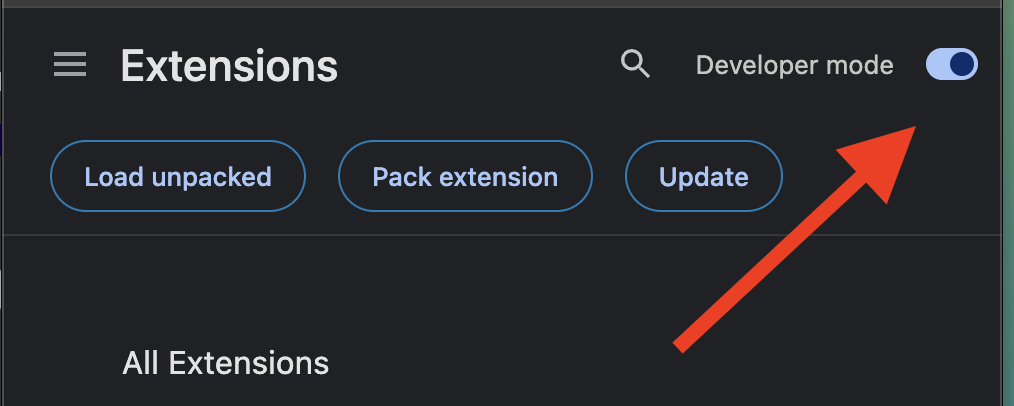
Click Load unpacked and select the
dist/folder inside your project.
Your extension appears in the list and its icon in the toolbar.
IMPORTANT
Load dist/, not the project root. If dist/ does not exist yet, the dev server has not finished its first build — wait for it, or run npm run build once.
5. Change something and watch it reload
Open src/content-script.ts. The scaffold ships a single line:
console.log('hello from content script')Change the message, save, and look at the console of any open tab. The content script re-injects itself without you touching chrome://extensions.
The same applies to your popup — edit the framework component behind index.html and it hot-updates like any Vite app. Background worker changes rebuild automatically too; MV3 makes worker reloads the awkward case, which is why Amber injects its own reload channel. Details in Dev Server & HMR.
Two keyboard shortcuts in the dev server terminal are worth knowing now:
- e — reload the whole extension
- p — reload the current active tab
6. Build for production
npm run buildThis writes an optimised, self-contained extension to dist/ with no dev-server dependency. To produce the zip that stores expect:
npm run archiveYou get release/<name>-<version>.zip. Both commands are covered in Build, Archive & Release.
Where to go next
- How Amber Maps to MV3 — what the manifest, the three execution contexts, and the generated output actually are.
- amber.config.ts — the one file you will keep open.
- Messaging — typed calls between content script, background worker, and pages.